How to Connect Facebook Messenger to Zapier (Step-by-Step)
May 13, 2026
·
12 min read
In this guide: Prerequisites · Step-by-step setup (6 steps) · Available triggers and actions · 6 real use cases with Zap configs · The recipient ID problem · Pricing at scale · What Zapier Messenger can't do · When to use a direct webhook instead
Before you start: what you actually need
Zapier's Facebook Messenger integration only works with Facebook Business Pages — not personal Facebook accounts, not personal Messenger, not Instagram Direct. This is a Meta policy constraint. If you're trying to connect a personal Messenger account, it cannot be done via Zapier or any official API.
You need all four of these before touching Zapier:
A Facebook Page — any Page where you have Admin or Editor role. If you don't have one, create a free Facebook Page at facebook.com/pages/create. Use "Business or brand" type.
Admin access to that Page — you must be listed as an Admin in the Page's Settings → Page roles. Editor access is not sufficient for some Zapier permissions.
A Zapier account — the free Starter plan works for testing but limits you to 100 tasks/month and single-step Zaps. You'll need at least the Professional plan for multi-step automations.
At least one message in your Page's inbox — Zapier tests triggers by pulling a recent message. If no one has messaged your Page, send a test message from a different Facebook account first.
Facebook App not required for Zapier: Unlike building with the raw Messenger API, you do not need to create a Facebook Developer App to use Zapier's Messenger integration. Zapier handles the App credentials on its side. You only need the Page and your Facebook login. If you later need advanced permissions or higher volume, you'll outgrow Zapier and need the raw API — see the last section.
Step-by-step: connecting Messenger to Zapier
1
Create a new Zap in Zapier
~2 min
Log in to zapier.com → click the orange + Create button in the top left → select Zaps. You'll land in the Zap editor. Click the Trigger step (the first block) to start configuring your integration.
You can use Zapier's AI assistant to describe what you want in plain English ("When someone messages my Facebook Page, log it to Google Sheets") or configure manually. This guide uses the manual approach so every field is explained.
2
Select the trigger: Facebook Messenger
~2 min
In the App search box, type Facebook Messenger and select it. Zapier will show you the available trigger events.
Trigger Event options
New Message Sent to Page — fires when any user sends a message to your Facebook Page. This is the most commonly used trigger — it fires on every inbound customer message.
New Message in Conversation — fires when a new message appears in a specific ongoing conversation thread. Less common; useful when tracking responses to existing threads.
For most use cases, select New Message Sent to Page.
3
Connect your Facebook account and select your Page
~3 min
Click Sign in to Facebook Messenger. A Facebook OAuth popup appears. Log in with the Facebook account that has admin access to your Page. Facebook will ask you to grant Zapier the pages_messaging and pages_manage_metadata permissions — click Allow.
After authorization, Zapier loads a dropdown of all Pages you admin. Select the Page you want to monitor for messages.
💡 Tip: If your Page doesn't appear in the dropdown, it usually means your Facebook account is listed as Editor (not Admin) on that Page, or you didn't grant the required Page permissions during the OAuth flow. Re-authorize with the correct account or update your Page role.
4
Test the trigger
~2 min
Click Test Trigger. Zapier makes a call to the Messenger API and looks for recent messages in your Page's inbox. If it finds one, it shows you a sample message object with all the available data fields.
Data fields available from the trigger
Sender ID — the user's PSID (Page-Scoped ID) — critical for sending replies Message Text — the text content of the message Page ID — your Facebook Page ID Timestamp — when the message was sent Message ID — unique ID for this specific message
💡 If the test fails: Make sure someone has actually messaged your Page recently. Send a test message from a different Facebook account (not the same account that has admin access), wait 60 seconds, then click Test Trigger again.
5
Configure your action
~5 min
Click the Action step and search for your target app. Common choices covered in the use cases section below: Google Sheets, Slack, OpenAI, Airtable, HubSpot, or Facebook Messenger again (for auto-reply).
Map the trigger data to your action fields. The most important field to map: if you're sending a reply via Messenger, you need to map Sender ID → Recipient ID. This is explained in detail in the recipient ID section below.
Example: Log to Google Sheets action fields
Spreadsheet → [select your spreadsheet]
Worksheet → [select your sheet tab]
Row values → map: Timestamp, Sender ID, Message Text, Page ID
6
Test and publish
~3 min
Click Test Action. Zapier runs the action with the sample data from your trigger test. Verify the result in your action app (check the Google Sheet row was added, the Slack message was sent, etc.). If successful, click Publish.
Your Zap is now live. Every new message to your Facebook Page will trigger the Zap. Note that Zapier checks for new data on a polling interval — on lower plans this is every 15 minutes; on higher plans it can be as fast as every 1 minute. This means replies are not instant.
💡 Polling vs real-time: Zapier's Messenger integration is polling-based, not webhook-based. Your Zap doesn't fire the instant a message arrives — it fires on the next poll cycle. For instant responses, use a direct webhook (covered at the end of this guide).
Available triggers and actions: the complete list
Zapier's Facebook Messenger integration is deliberately minimal. Here is exactly what is and isn't available:
Zapier Messenger — complete capability map
// ── TRIGGERS (what Zapier can listen for) ────────────────────────────────
✓ New Message Sent to Page // any inbound message from any user
✓ New Message in Conversation // messages in a specific thread// ── ACTIONS (what Zapier can do) ─────────────────────────────────────────
✓ Send Message from Page // send text to a recipient by PSID// ── WHAT IS NOT AVAILABLE ────────────────────────────────────────────────
✗ Send image, document, or media // text only via Zapier
✗ Send buttons or quick replies // no rich message types
✗ Initiate new conversations // 24h window restriction applies
✗ Get user profile (name, photo) // no Graph API lookup action
✗ Mark message as read // no message management
✗ Persistent menu management // not available
✗ Webhooks / real-time events // polling only, not instant
6 real use cases with Zap configurations
📊
Log every message to Google Sheets
Track every inbound customer message with timestamp, sender ID, and message text in a spreadsheet. Great for small teams without a CRM or for building message history for later analysis.
Messenger → Google Sheets: Create Spreadsheet Row
🔔
Slack notification on new message
Alert your team in a Slack channel the moment a customer messages your Page. Include the message preview and sender ID so a team member can respond manually if needed.
Messenger → Slack: Send Channel Message
🤖
AI auto-reply via OpenAI + Messenger
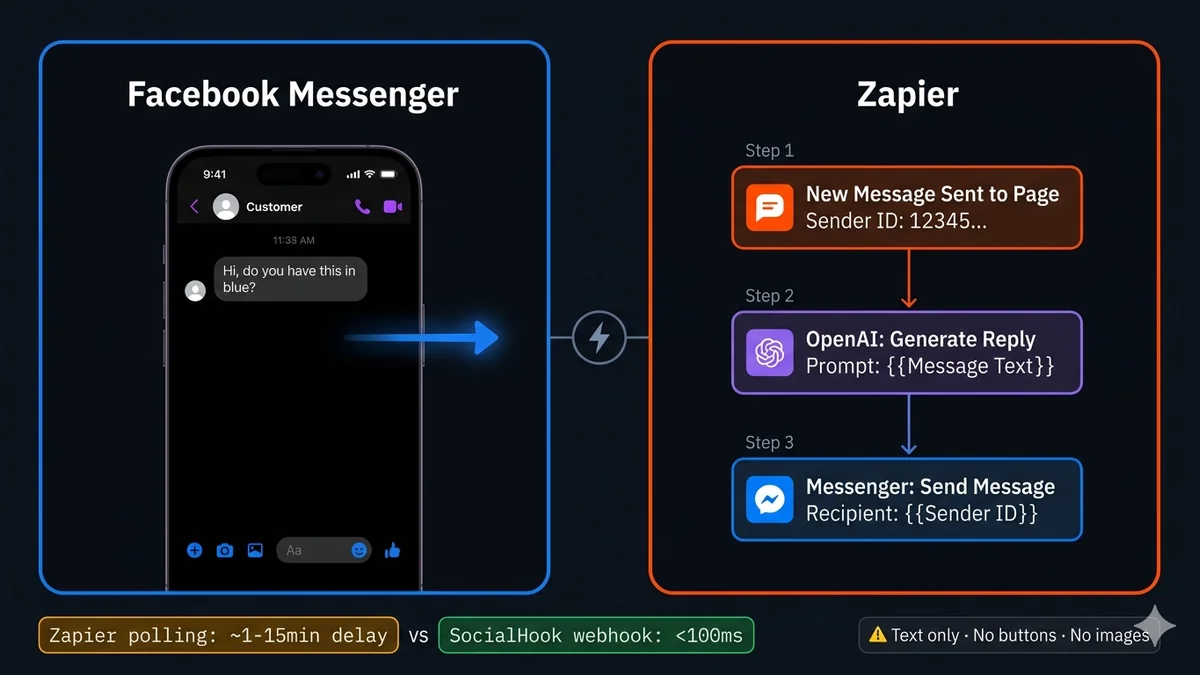
3-step Zap: Messenger trigger → OpenAI (send message text as prompt, get reply) → Messenger send reply. Sends an AI-generated text response automatically. Latency: 1–15 minutes depending on your Zapier plan.
Messenger → OpenAI → Messenger: Send Message
💼
Create CRM contact from new conversation
When a new user messages your Page for the first time, create a contact in HubSpot, Salesforce, or Pipedrive. Include the sender PSID so you can look them up later when they message again.
Messenger → HubSpot: Create Contact
📧
Email transcript to team on new message
Forward every Messenger message to your support team's email inbox. Useful for very small teams that prefer email to Slack, or as a backup log alongside your primary tool.
Messenger → Gmail / Outlook: Send Email
📋
Create Trello card for support requests
Automatically create a Trello card (or Asana task, or Monday.com item) with the customer's message when you detect support keywords. Filter by message text containing "help", "broken", "issue".
Messenger (filtered) → Trello: Create Card
The recipient ID problem: the field nobody explains
When you add the Send Message from Page action to reply to a Messenger user, Zapier asks for a Recipient ID. This trips up nearly every first-time user. Here is what it is and exactly where to get it.
The recipient ID is the user's Page-Scoped ID (PSID) — a unique numeric string that Facebook assigns to identify each user on your specific Page. It is NOT their name, NOT their email, NOT their Facebook URL. It's a long number like 12345678901234.
When the trigger fires (new message received), the data includes a Sender ID field — this is the PSID of the person who just messaged you. To reply to them, you map this Sender ID from the trigger into the Recipient ID field of your Send Message action.
Field mapping for auto-reply Zap
── Trigger: New Message Sent to Page ──────────────────────────────────────
Available data from trigger:
Sender ID → 12345678901234← THIS is the PSID you need
Message Text → "Hi, do you have this in blue?"
Page ID → 987654321098765
Timestamp → 1747231892── Action: Send Message from Page ──────────────────────────────────────────
Field mapping:
Page → [your Facebook Page]
Recipient ID → {{Sender ID}}← map Sender ID from trigger to here
Message → "Thanks for reaching out! We'll get back to you shortly." (or: use OpenAI output as the message text)// If you try to put a PSID manually (not from the trigger),// you can only use PSIDs of users who have messaged your Page// AND only within the 24-hour service window.
You cannot send to users who haven't messaged first. The Messenger Platform's 24-hour window applies to Zapier exactly as it does to the raw API. You can only reply to a user's PSID if they have sent your Page a message within the past 24 hours. Attempting to send to a stale PSID (>24h old) returns an error from the Messenger API and the Zapier action fails. There is no way to initiate new conversations via Zapier.
Zapier pricing at scale: the math
Zapier charges per task — one task = one step in a Zap executing once. A 2-step Zap (Messenger trigger + one action) uses 2 tasks per message. A 3-step Zap (Messenger → OpenAI → Messenger reply) uses 3 tasks per message. Here is what that costs at different message volumes:
Messages/day
Tasks/month (3-step Zap)
Zapier plan needed
Monthly cost
SocialHook cost
~3/day
~270 tasks
Free
$0
$50/mo
~20/day
~1,800 tasks
Starter
$19.99/mo
$50/mo
~50/day
~4,500 tasks
Professional
$49/mo
$50/mo
~200/day
~18,000 tasks
Team
$69/mo
$50/mo
~500/day
~45,000 tasks
Team (50K)
$69/mo
$50/mo
~1,000/day
~90,000 tasks
Company add-on
$103+/mo
$50/mo
For very low-volume use (fewer than 50 messages per day), Zapier is the right choice — it requires no code, no server, and the Starter/Professional cost is negligible. Above ~200 messages per day with a multi-step Zap, a direct webhook solution at a flat rate becomes more cost-efficient and delivers dramatically better performance.
What Zapier Messenger genuinely cannot do
🚫
Cannot initiate new conversations
You can only reply to users who messaged your Page within the past 24 hours. There is no way to proactively message a user via Zapier's Messenger integration — even if you have their PSID from a previous session. The Messenger 24-hour window is a Meta policy that Zapier cannot bypass.
Hard limit
🖼️
Text messages only — no rich media
Zapier's Send Message action supports plain text only. You cannot send images, buttons, quick replies, carousels, or any of Messenger's rich message types. If your use case requires buttons or media, you need the raw Messenger API.
Hard limit
⏱️
Polling delay — not real-time
Zapier checks for new messages on a polling interval: 15 minutes on free, up to 1 minute on Professional+. Customer messages don't fire your Zap instantly. For customer support use cases, a 1–15 minute response delay is often unacceptable. Direct webhooks fire in under 100ms.
Hard limit
📎
No media/attachment handling
If a customer sends you an image, voice note, or document via Messenger, Zapier's trigger receives the message event but provides limited or no access to the attachment content (URLs are authenticated and expire). You cannot download or process customer-sent media via Zapier.
Partial
📊
No per-task pricing exemptions for high volume
As your Messenger volume grows, task costs grow linearly. Zapier doesn't offer unlimited task plans — the highest plan has a task cap. Multi-step Zaps multiply costs. A 5-step automation receiving 500 messages/day = 75,000 tasks/month.
Cost limit
🔁
No conversation state or session memory
Zapier treats each message as an independent trigger event. It has no built-in way to maintain conversation state across multiple turns. If you need multi-step conversations ("type 1 for support, type 2 for billing"), you'd need an external database and significant Zap complexity.
Workaround needed
When to stop using Zapier and use a direct webhook
Zapier is the right choice when you want automation without writing code and your volume is low. It is the wrong choice when:
You need responses faster than 1 minute
You need to send images, buttons, quick replies, or carousels
Your volume exceeds ~200 messages/day (per-task costs exceed $50/month)
You need multi-step conversation logic with memory
You're handling media attachments (images, voice notes) from customers
You need to integrate WhatsApp or Instagram alongside Messenger
You're building a product, not an internal automation
When you hit any of these walls, the move is to a direct webhook. SocialHook handles the Messenger webhook infrastructure — HMAC verification, raw payload parsing, retry handling — and delivers every event as clean normalized JSON to your endpoint in real-time. You write the application logic in your own code, on your own server, without per-task pricing.
The migration from Zapier to a webhook is also cleaner than it looks. Your Zap logic (the steps: "receive message → call OpenAI → send reply") maps directly to code: your webhook handler calls OpenAI and then calls the Messenger Send API. The SocialHook quickstart has a complete Node.js handler working in under 30 minutes.
FAQ
Common questions
Can Zapier connect to Facebook Messenger?
Yes — Zapier has a native Facebook Messenger integration. It triggers when someone messages your Facebook Page and can send text replies. Requirements: you must have a Facebook Page (not a personal profile) and be an admin of that Page. The integration does not work with personal Facebook Messenger accounts — only with Facebook Business Pages.
Why doesn't my Facebook Page appear in Zapier's dropdown?
Three common causes: (1) Wrong role — you're listed as Editor on the Page, not Admin. Update your role in Page Settings → Page roles → promote yourself to Admin. (2) Wrong account — you authorized Zapier with a Facebook account that doesn't admin the Page you want. Disconnect and reconnect with the correct account. (3) Permissions not granted — during the Facebook OAuth flow, you didn't select the Page or didn't allow the required permissions. Disconnect and re-authorize, granting all requested permissions.
What is the Recipient ID in Zapier's Messenger Send Message action?
The Recipient ID is the user's Page-Scoped ID (PSID) — a long number like 12345678901234 that Facebook assigns to each user per Page. When your trigger fires (new message received), the data includes a Sender ID field — this is the PSID of the person who messaged you. Map Sender ID → Recipient ID in your action to reply to them. You cannot send to arbitrary users — only to PSIDs from users who have messaged within the past 24 hours.
How long does Zapier take to respond to a Messenger message?
Zapier is polling-based — it checks for new messages on a schedule. Response time: 15 minutes on free, 5 minutes on Starter, 1–2 minutes on Professional. This is not real-time. For customer support where users expect a response within seconds, Zapier's delay is often unacceptable. A direct webhook (like SocialHook) fires in under 100ms of the message arriving at Meta's servers.
Can I use Zapier to send images or buttons via Messenger?
No — Zapier's Send Message action for Facebook Messenger supports plain text only. You cannot send images, documents, buttons, quick replies, carousels, or any of Messenger's rich message types via Zapier. If your use case requires these, you need the raw Messenger Platform API (either directly or via SocialHook's normalized inbound + the Messenger Send API for outbound).
How much does Zapier cost for Facebook Messenger at scale?
Zapier charges per task — one task per Zap step per execution. A 3-step Zap (trigger + OpenAI + reply) at 200 messages/day = ~18,000 tasks/month, covered by the Team plan at $69/month. At 1,000 messages/day = ~90,000 tasks, pushing into Company add-ons at $100+/month. At those volumes, a flat-rate webhook solution ($50/month unlimited events) is both cheaper and faster.
When you've hit Zapier's limits — polling delays, text-only messages, per-task pricing — SocialHook is the next step. Real-time Messenger events, all message types, normalized JSON to your webhook. WhatsApp and Instagram included in the same $50/month.