Limites de débit de l'API WhatsApp : que se passe-t-il quand vous envoyez trop de messages
21 mai 2026
·
17 min de lecture
Dans cet article : Les trois systèmes de rate limit · Tableau des tiers de messagerie · Règles de progression de tier · Quality rating (GREEN/YELLOW/RED) · Cap de fréquence par destinataire · Codes d'erreur exacts et réponses · Ce qu'il ne faut jamais réessayer · Comportement de pause de compte · Code de retry pour la production · Stratégie de warm-up du numéro · FAQ
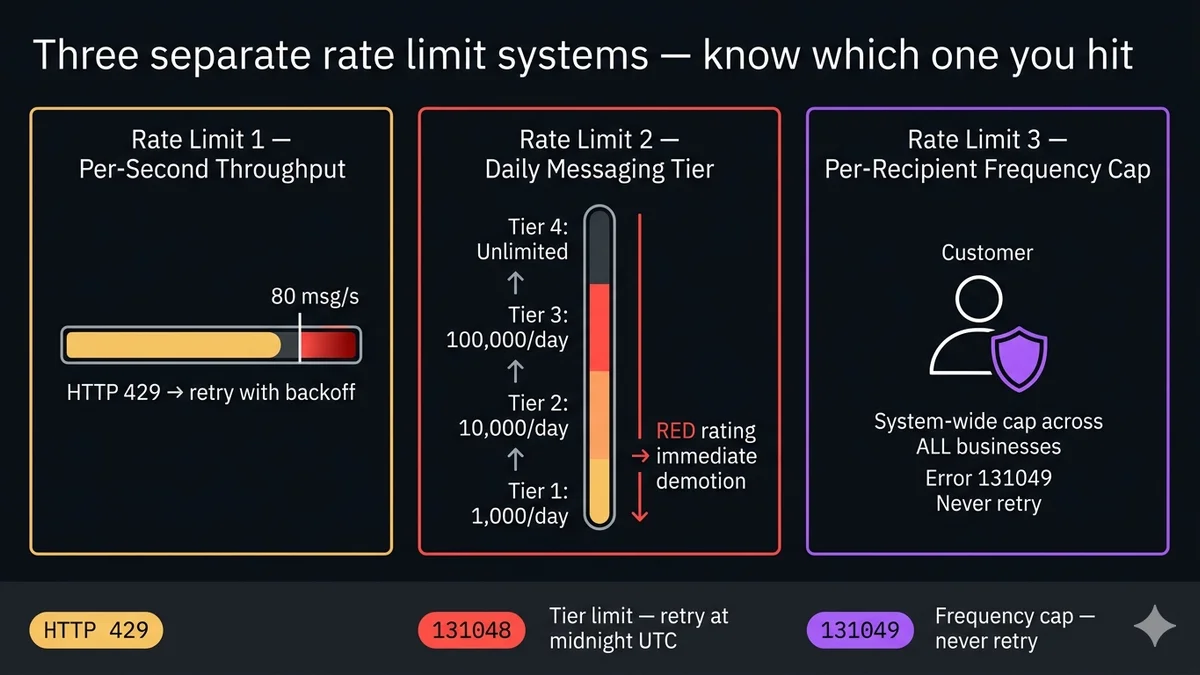
Les trois systèmes de rate limit — et pourquoi ils sont différents
La chose la plus importante à comprendre sur les rate limits WhatsApp : il existe trois systèmes complètement séparés, chacun maintenu indépendamment par l'infrastructure de Meta. Atteindre l'un ne signifie pas que vous avez atteint les autres. Les gérer incorrectement — notamment réessayer des messages qui ne devraient jamais l'être — aggrave activement votre quality rating et accélère le problème.
01
Throughput par seconde
80 messages/seconde par numéro de téléphone. Limite d'infrastructure API. Renvoie HTTP 429 immédiatement. Réessayer avec exponential backoff.
HTTP 429
02
Tier de messagerie journalier
1K / 10K / 100K / Illimité contacts uniques initiés par l'entreprise par 24h. Réinitialisation à minuit UTC. NE PAS réessayer le même jour.
Erreur 131048
03
Cap de fréquence par destinataire
Meta bloque silencieusement les messages marketing aux destinataires ayant trop reçu de toute entreprise durant les 24–48 dernières heures. Ne jamais réessayer.
Erreur 131049
Rate limit 1 : throughput API par seconde
La Cloud API supporte 80 messages par seconde par numéro de téléphone par défaut. C'est une limite pure d'infrastructure API — appliquée à la milliseconde. La dépasser renvoie HTTP 429 immédiatement avec une erreur de rate limit standard. Cette limite est évolutive : contactez Meta pour passer à 1 000 messages par seconde pour les expéditeurs à fort volume.
La réponse d'erreur quand vous atteignez cette limite :
HTTP 429 Response
per-second-limit.json
HTTP/1.1 429 Too Many Requests
Retry-After: 1
Content-Type: application/json
{
"error": {
"message": "(#613) Calls to this api have exceeded the rate limit.",
"type": "OAuthException",
"code": 613,
"fbtrace_id": "AbCdEfGh..."
}
}
// Réessayer : OUI — utilisez exponential backoff démarrant à 1 seconde// Le header Retry-After est indicatif — respectez-le mais ajoutez aussi du jitter
Mieux vaut prévenir que guérir. À 80 msg/s, envoyer 10 000 messages prend 125 secondes. Pour les opérations en masse, ajoutez un délai de 15–20 ms entre les envois pour rester confortablement sous 50–60 msg/s — sans danger sous la limite tout en maintenant un taux de réussite de livraison de 99 %+.
Rate limit 2 : limites du tier de messagerie journalier
C'est la limite à laquelle la plupart des gens font référence en disant « rate limits WhatsApp ». Le tier de messagerie contrôle à combien de clients uniques votre numéro de téléphone peut envoyer des messages initiés par l'entreprise dans une fenêtre glissante de 24 heures. Le tier est par numéro de téléphone, pas par compte.
Les messages de session ne sont pas limités par tier. Le tier de messagerie journalier ne compte que les messages initiés par l'entreprise — messages de modèle envoyés pour démarrer de nouvelles conversations ou à des clients hors de la fenêtre de service de 24 heures. Quand un client vous envoie d'abord un message, toutes les réponses dans la fenêtre de service résultante de 24 heures sont des messages de session — ils NE comptent PAS dans votre tier journalier. Vous pouvez envoyer des messages de session illimités à n'importe quel tier.
Tier
Contacts uniques / 24h
État initial
Condition d'upgrade
Condition de downgrade
Tier 1
1 000 contacts uniques
Tous les nouveaux numéros
7 jours d'usage constant à 80 %+ de capacité, qualité GREEN/YELLOW
La qualité tombe à RED
Tier 2
10 000 contacts uniques
Upgrade auto
7 jours à 80 %+ de 10K/jour, qualité GREEN/YELLOW
Qualité RED → descend au Tier 1
Tier 3
100 000 contacts uniques
Upgrade auto
7 jours à 80 %+ de 100K/jour, qualité GREEN/YELLOW
Qualité RED → descend au Tier 2
Tier 4
Illimité
Upgrade auto
Atteint après progression du Tier 3
Qualité RED → descend au Tier 3
La réponse d'erreur quand vous dépassez votre tier journalier :
HTTP 200 avec erreur dans le body (status : failed)
error-131048.json
{
"messaging_product": "whatsapp",
"contacts": [{ "input": "+15550001234", "wa_id": "15550001234" }],
"messages": [{ "id": "wamid.HBgL..." }]
}
// L'envoi initial renvoie 200. L'échec arrive plus tard via un événement status webhook :
{
"statuses": [{
"id": "wamid.HBgL...",
"status": "failed",
"errors": [{
"code": 131048,
"title": "Message failed to send because too many messages were sent from the sender phone number.",
"details": "Messages to this phone number are being sent too quickly."
}]
}]
}
// CRITIQUE : NE PAS réessayer sur 131048. Attendre le reset de minuit UTC.// Réessayer gaspille des appels API et ne contourne pas la limite de tier.
Progression de tier : comment passer de 1K à Illimité
La promotion de tier de Meta est automatique — vous ne pouvez pas la demander directement. Elle se base sur trois signaux mesurés sur une fenêtre glissante de 7 jours :
Seuil de volume : Vous devez atteindre constamment 80 %+ de la limite journalière de votre tier actuel. Un numéro en Tier 1 envoyant seulement 200 messages/jour ne monte jamais — même avec un quality rating parfait.
Quality rating : Doit être GREEN ou YELLOW. Un rating RED bloque entièrement la promotion et déclenche une démotion immédiate.
Temps : Meta évalue après 7 jours consécutifs en respectant les deux critères. La promotion n'est pas instantanée.
Tier 1
1K / jour
7 jours 80 %+ GREEN/YELLOW
Tier 2
10K / jour
7 jours 80 %+ GREEN/YELLOW
Tier 3
100K / jour
7 jours 80 %+ GREEN/YELLOW
Tier 4
Illimité
La démotion est immédiate, la promotion non : Une chute de quality rating vers RED vous fait immédiatement descendre d'un tier — vous vous réveillez le lendemain avec une limite inférieure. Remonter nécessite 7 jours d'opération propre au nouveau tier inférieur. Cette asymétrie signifie qu'une seule mauvaise campagne de broadcast peut faire reculer votre progression de tier de plusieurs semaines. Protégez votre quality rating aussi agressivement que vous protégez votre réputation d'expéditeur.
La boucle de feedback du quality rating
Le quality rating (GREEN / YELLOW / RED) est le nombre le plus important pour la santé de votre WhatsApp API. Il est calculé par Meta sur une fenêtre glissante de 7 jours basée sur les signaux des destinataires de messages — spécifiquement : blocages, signalements de spam, et feedback négatif relatif à votre volume d'envoi.
● GREEN
Sain — éligible à l'upgrade de tier
Faible taux de blocages et de signalements de spam par rapport au volume d'envoi. Les destinataires interagissent positivement — ils répondent, continuent les conversations. Éligible à l'upgrade automatique après 7 jours à 80 %+ de capacité. C'est l'état cible pour tout expéditeur en production.
● YELLOW
Avertissement — upgrade de tier en pause
Taux modéré de blocages ou de signalements de spam. Vous pouvez encore envoyer à la limite de votre tier actuel — pas de démotion immédiate. Mais l'upgrade est en pause. Meta surveille pendant 7 jours : si la qualité s'améliore vers GREEN, vous restez au tier actuel. Si elle se dégrade vers RED, démotion immédiate.
● RED
Critique — démotion immédiate
Taux élevé de blocages ou de signalements de spam. Immédiat : vous descendez d'un tier. RED soutenu sur 7+ jours risque de faire flaguer ou désactiver entièrement le numéro de téléphone. C'est l'état d'échec en cascade — une mauvaise campagne crée un rating RED → démotion → la campagne suivante a moins de capacité → plus de pression pour envoyer à la limite → plus de blocages.
Le quality rating n'est pas exposé dans la Cloud API directement — vous devez le vérifier dans Meta Business Manager (WhatsApp Manager → Phone Numbers → colonne Quality Rating) ou souscrire au champ webhook phone_number_quality_update. Souscrivez à ce champ et construisez une alerte pour savoir immédiatement quand votre qualité se dégrade.
Rate limit 3 : cap de fréquence par destinataire (celui que personne n'explique)
C'est le rate limit qui déroute le plus les développeurs car il est entièrement séparé du tier de votre compte, il fonctionne globalement sur toutes les entreprises et il échoue silencieusement avec un message d'erreur trompeur.
Le frequency capping de Meta limite combien de messages marketing un utilisateur WhatsApp spécifique peut recevoir de n'importe quelle entreprise dans une fenêtre de temps définie (24–48 heures). C'est Meta protégeant les utilisateurs de la surcharge de messages marketing sur l'ensemble de la plateforme — pas seulement vos messages. Si un utilisateur a reçu des messages de modèle marketing de 5 autres entreprises aujourd'hui, votre message marketing parfaitement légitime à cet utilisateur peut être silencieusement bloqué.
L'erreur que vous recevez :
Status webhook — erreur 131049
frequency-cap-error.json
{
"statuses": [{
"id": "wamid.HBgL...",
"status": "failed",
"errors": [{
"code": 131049,
"title": "This message was not delivered to maintain a healthy ecosystem.",
"details": "Unhealthy system activity"
}]
}]
}
// C'est du frequency capping par destinataire — ce n'est pas la faute de votre compte// Affecte UNIQUEMENT les modèles MARKETING// Les modèles UTILITY et AUTHENTICATION NE sont PAS frequency-capped par destinataire// NE PAS réessayer — le cap est à l'échelle système, pas par expéditeur// Logger les contacts échoués, ne pas réessayer pendant 48h
Faits clés sur le frequency capping par destinataire :
Modèles marketing uniquement. Les modèles utility (confirmations de commande, mises à jour d'expédition, rappels de rendez-vous) et les modèles d'authentification (OTPs) NE sont PAS soumis au frequency capping par destinataire. Si votre campagne « marketing » peut être légitimement classée comme utility, reclassez le modèle.
Le cap est global, pas par expéditeur. Vous n'avez aucune visibilité sur combien de messages marketing le destinataire a reçus d'autres entreprises. Vous ne pouvez pas prédire quels envois seront cappés.
Taux d'échec attendu de 10–40 % sur les campagnes marketing vers des utilisateurs WhatsApp très actifs est normal. Ce n'est pas un problème avec votre compte — c'est la plateforme protégeant les utilisateurs. Budgétisez-le.
Ne jamais réessayer les échecs 131049. Le destinataire sera frequency-capped pendant 24–48 heures. Réessayer gaspille des envois, brûle votre quota journalier de tier et nuit potentiellement à votre quality rating.
Référence complète des codes d'erreur
HTTP 429
Limite de throughput par seconde dépassée
Trop d'appels API en trop peu de temps. Renvoyé immédiatement avec header Retry-After. Votre taux d'envoi a dépassé 80 msg/s (ou votre limite personnalisée). C'est un blocage au niveau infrastructure — le message n'a jamais été mis en file.
✓ Réessayer avec exponential backoff + jitter
131048
Limite du tier de messagerie journalier dépassée
Votre numéro de téléphone a atteint sa limite de contacts uniques sur 24h pour le tier actuel (1K, 10K ou 100K). L'envoi semble réussir initialement (renvoie 200) mais échoue de façon asynchrone — vous recevez ce code dans un événement status webhook. Le message n'a pas été livré.
⏳ Ne pas réessayer aujourd'hui — programmer après le reset de minuit UTC
131049
Cap de fréquence par destinataire — « Unhealthy system activity »
Le destinataire spécifique a reçu trop de messages marketing de toutes les entreprises dans les dernières 24–48 heures. Meta a bloqué la livraison de votre modèle marketing pour protéger cet utilisateur. S'applique uniquement aux modèles de catégorie marketing. Les modèles utility et authentication ne sont pas affectés.
✗ Ne jamais réessayer — le destinataire est globalement cappé pendant 24–48h
131016
Service temporairement indisponible
Erreur transitoire d'infrastructure Meta. Pas un rate limit — un échec côté serveur. Le message peut ou non avoir été mis en file avant l'erreur. Sûr de réessayer après 30–60 secondes. Vérifiez Meta Status pour les incidents en cours.
✓ Réessayer après 30–60s (max 3 tentatives)
131031
Compte business verrouillé
Votre WhatsApp Business Account a été temporairement verrouillé pour activité suspecte ou violation de politique. Tous les envois échouent immédiatement. Vérifiez Meta Business Manager pour les détails de la violation. N'essayez pas de contourner — résolvez la violation directement avec le support Meta.
✗ Ne pas réessayer — résolvez la violation dans Meta Business Manager
Ce qu'il ne faut jamais réessayer — la règle qui sauve votre quality rating
L'erreur la plus dommageable dans la gestion d'erreurs WhatsApp API : réessayer les erreurs 131048 et 131049. Les deux sont des échecs asynchrones — l'API a renvoyé 200, vous pensiez que le message était envoyé, puis vous recevez l'erreur plus tard dans un événement status webhook. Beaucoup de développeurs voient l'échec et réessayent immédiatement. C'est faux, et voici pourquoi :
131048 (limite de tier) : La fenêtre ne se réinitialise pas avant minuit UTC. Réessayer signifie que vous brûlez des messages supplémentaires de votre quota journalier, échouez à nouveau et brûlez plus de quota. Vous risquez aussi d'envoyer au même client un message en double quand la fenêtre se réinitialise. Loggez l'échec avec l'heure de retry programmée (minuit UTC) et passez à autre chose.
131049 (frequency cap) : Le destinataire est cappé à l'échelle système, pas par vous. Réessayer ne fait rien sauf : (a) consommer votre quota journalier de tier, (b) risquer de générer un signal de statut de livraison « failed » qui pourrait marginalement affecter votre quality rating s'il est interprété comme une tentative de spam, (c) potentiellement agacer le destinataire quand le cap se lève et qu'il reçoit des doublons. Loggez et passez pendant 48 heures.
L'arbre de décision de retry : HTTP 429 → réessayer avec backoff. Erreur 131048 dans status webhook → logger, programmer après minuit UTC. Erreur 131049 dans status webhook → logger, passer pendant 48h. Erreur 131016 → réessayer une fois après 30–60s. Erreur 131031 → arrêter tous les envois, réparer le compte. Toute autre 5xx → réessayer jusqu'à 3 fois avec exponential backoff.
Mise en pause du compte vs restriction au niveau du numéro
Il y a deux états de compte différents qui ressemblent à « mon compte a cessé de fonctionner » mais ont des causes et des solutions différentes :
Restriction de numéro de téléphone — la messagerie du numéro spécifique est limitée ou en pause. Cela arrive quand le quality rating reste RED pendant 7+ jours ou quand le numéro reçoit une violation de politique spécifique. Les autres numéros de votre WABA continuent de fonctionner. Vérifiez le statut du numéro dans WhatsApp Manager → Phone Numbers. Le champ status affiche « Connected », « Offline », « Flagged » ou « Restricted ».
Suspension de WABA — tout le WhatsApp Business Account est suspendu. Tous les numéros sous le WABA cessent d'envoyer et de recevoir. Cela arrive lors de violations de politique graves ou de détection de fraude au niveau du compte. Vous recevez un événement webhook account_update avec event: ACCOUNT_RESTRICTION ou event: ACCOUNT_VIOLATION.
Pour les agences : c'est pourquoi un WABA par client est obligatoire. Une suspension du WABA d'un client n'a aucun effet sur les WABAs des autres clients.
Code de retry pour la production : gérer correctement tous les types de rate limit
Node.js — envoi production conscient des rate limits
rateLimitAwareSend.js
const { sendWhatsApp } = require('./whatsapp');
const { scheduleRetry } = require('./scheduler');
const { logFailure } = require('./logger');
// Codes d'erreur qui ne devraient JAMAIS être réessayés immédiatementconstNO_RETRY_CODES = newSet([131049, 131031]); // freq cap, verrouillage de compteconstRETRY_NEXT_DAY = newSet([131048]); // limite de tierconstRETRY_WITH_BACKOFF = newSet([131016]); // erreur transitoireasync functionsleep(ms) { return newPromise(r => setTimeout(r, ms)); }
// Gère les 429 par seconde avec exponential backoffasync functionsendWithThroughputRetry(to, body, attempt = 0) {
try {
returnawaitsendWhatsApp(to, body);
} catch (err) {
if (err.status !== 429 || attempt >= 5) throw err;
// Exponential backoff avec jitter pour la limite de throughput par secondeconst delay = Math.min(
1000 * 2 ** attempt + Math.random() * 500,
60000
);
console.warn(`429 — waiting ${Math.round(delay)}ms (attempt ${attempt + 1}/5)`);
awaitsleep(delay);
returnsendWithThroughputRetry(to, body, attempt + 1);
}
}
// Appelé depuis votre handler status webhook quand un message échoue de façon asynchroneasync functionhandleFailedStatus(failedStatus) {
const errorCode = failedStatus.errors?.[0]?.code;
const recipient = failedStatus.recipient_id;
const messageId = failedStatus.id;
if (NO_RETRY_CODES.has(errorCode)) {
// 131049 : frequency cap — passer pendant 48h. 131031 : verrouillage compte — réparer manuellement.awaitlogFailure({ messageId, recipient, errorCode, action: 'no_retry' });
return;
}
if (RETRY_NEXT_DAY.has(errorCode)) {
// 131048 : limite de tier journalier — programmer retry après minuit UTCconst midnightUTC = newDate();
midnightUTC.setUTCHours(0, 5, 0, 0); // 00:05 UTC du jour suivant — buffer de 5min
midnightUTC.setUTCDate(midnightUTC.getUTCDate() + 1);
awaitscheduleRetry({ messageId, recipient, retryAt: midnightUTC });
awaitlogFailure({ messageId, recipient, errorCode, action: 'scheduled_retry', retryAt: midnightUTC });
return;
}
if (RETRY_WITH_BACKOFF.has(errorCode)) {
// 131016 : erreur transitoire — réessayer une fois après 60sawaitscheduleRetry({ messageId, recipient, retryAt: newDate(Date.now() + 60000) });
return;
}
// Code d'erreur inconnu — logger et alerter pour revue manuelleawaitlogFailure({ messageId, recipient, errorCode, action: 'manual_review' });
}
// Sender en masse avec rate limiting intégréasync functionbulkSendThrottled(contacts, message, delayMs = 20) {
const results = { sent: 0, failed: [] };
for (const contact of contacts) {
try {
awaitsendWithThroughputRetry(contact.phone, message);
results.sent++;
} catch (err) {
results.failed.push({ ...contact, error: err.message });
}
awaitsleep(delayMs); // 20ms = ~50 msg/s — sûr sous la limite de 80 msg/s
}
return results;
}
module.exports = { sendWithThroughputRetry, handleFailedStatus, bulkSendThrottled };
Warm-up du numéro : la bonne façon de progresser vers le Tier 4
Un nouveau numéro WhatsApp Business démarre au Tier 1 (1 000 contacts/jour). Sauter immédiatement à de grandes campagnes de broadcast est la façon la plus rapide d'accumuler des blocages et des signalements de spam, détruisant votre quality rating avant d'avoir construit le moindre signal de confiance. La bonne approche : warm-up graduel sur 2–4 semaines.
La stratégie de warm-up qui maximise la vitesse de progression de tier tout en protégeant le quality rating :
Semaine 1 : Envoyez uniquement à vos contacts à plus fort engagement — clients qui vous ont déjà répondu, acheté récemment ou explicitement opt-in via un processus avec friction. Visez 500–800 contacts/jour (80 % du Tier 1). Surveillez le quality rating quotidiennement.
Semaine 2–3 : Si la qualité est GREEN, vous devriez être auto-promu au Tier 2. Augmentez à 7 000–8 000 contacts/jour (80 % du Tier 2). Continuez à envoyer uniquement à des segments engagés. Supprimez les contacts non réactifs n'ayant pas interagi depuis 90+ jours.
Semaine 4+ : Continuez le pattern. Chaque tier nécessite 7 jours d'usage à 80 %+ avec qualité GREEN/YELLOW. Temps total du Tier 1 au Tier 4 : minimum 3–4 semaines de volume constant et de haute qualité.
Surveillez toujours les taux d'échec 131049. Si vous voyez des échecs 131049 (frequency cap) dépassant 20–25 % de vos envois, vous ciblez trop d'utilisateurs à haute saturation. Améliorez la qualité de votre liste ou réduisez la fréquence avant d'aller plus loin.
L'exception entrante : Les messages entrants (clients vous contactant en premier) et les réponses de session ne comptent pas dans votre tier journalier. Si votre opération de service client est principalement entrante — clients qui prennent contact, votre équipe répondant dans la fenêtre de 24h — vous pouvez gérer des milliers de conversations quotidiennes au Tier 1 sans aucun souci de rate limit. Les rate limits s'appliquent uniquement aux messages sortants initiés par l'entreprise. Recevez autant de messages entrants que vous voulez sur SocialHook pour 50 $/mois forfaitaire — aucun rate limit côté réception.
FAQ
Questions fréquentes
Quels sont les trois types de rate limits WhatsApp API ?
(1) Throughput par seconde : 80 messages/seconde par numéro de téléphone — renvoie HTTP 429 immédiatement. Réessayer avec exponential backoff. (2) Tier de messagerie journalier : limite les contacts uniques initiés par l'entreprise par 24 heures (1K/10K/100K/Illimité) — renvoie erreur 131048 de façon asynchrone via webhook. NE PAS réessayer avant minuit UTC. (3) Cap de fréquence par destinataire : Meta bloque silencieusement les messages marketing aux utilisateurs ayant trop reçu de toutes les entreprises en 24–48h — renvoie erreur 131049. Ne jamais réessayer.
Que signifie l'erreur 131048 et dois-je la réessayer ?
L'erreur 131048 signifie « Message failed to send because too many messages were sent from the sender phone number » — vous avez dépassé votre limite de tier de messagerie journalier. Ne pas réessayer le même jour. La fenêtre de tier se réinitialise à minuit UTC. Programmez un retry pour 00:05 UTC le lendemain. Réessayer immédiatement gaspille votre quota restant et ne contourne pas la limite.
Que signifie l'erreur 131049 et pourquoi mon taux d'échec est-il élevé ?
L'erreur 131049 (« Unhealthy system activity ») est le cap de fréquence par destinataire de Meta. Le destinataire spécifique a reçu trop de messages marketing de toutes les entreprises dans les 24–48 dernières heures. Un taux d'échec 131049 de 10–40 % sur les campagnes marketing vers des utilisateurs WhatsApp actifs est complètement normal — pas un problème avec votre compte. Cela n'affecte que les modèles de catégorie marketing. Les modèles utility et authentication ne sont pas frequency-cappés par destinataire. Ne jamais réessayer les échecs 131049.
Comment passer au tier de messagerie WhatsApp supérieur ?
Les upgrades de tier sont automatiques — vous ne pouvez pas les demander. Vous devez : (1) atteindre constamment 80 %+ de la limite journalière de votre tier actuel pendant 7 jours consécutifs, et (2) maintenir un quality rating GREEN ou YELLOW pendant toute cette période. Si votre qualité est GREEN après 7 jours à 80 %+ de capacité, Meta vous promeut automatiquement. YELLOW met la promotion en pause. RED vous descend immédiatement d'un tier. Construisez le tier en vous concentrant d'abord sur les audiences engagées pour protéger le quality rating.
Les messages de session (réponses aux conversations initiées par le client) comptent-ils dans le tier journalier ?
Non. Le tier de messagerie journalier ne compte que les messages initiés par l'entreprise — messages de modèle envoyés pour démarrer de nouvelles conversations ou à des clients hors de leur fenêtre de service de 24 heures. Quand un client vous écrit en premier et que vous répondez dans la fenêtre de 24 heures résultante, ce sont des messages de session. Ils ne comptent pas dans votre limite de tier et n'ont pas de plafond journalier à aucun niveau de tier.
Qu'arrive-t-il à mon quality rating quand je reçois des blocages et des signalements de spam ?
Les blocages et signalements de spam réduisent directement votre quality rating sur une fenêtre glissante de 7 jours. Un rating YELLOW met en pause l'éligibilité à l'upgrade de tier. Un rating RED vous descend immédiatement d'un tier (p. ex. Tier 2 → Tier 1) et bloque les upgrades supplémentaires jusqu'au retour à GREEN. Un RED soutenu pendant 7+ jours peut entraîner le flaguage ou la désactivation temporaire du numéro de téléphone. Protégez votre rating en envoyant uniquement à des contacts opt-in qui s'attendent à vos messages, en supprimant les non-engagés et en classant les messages comme utility/authentication plutôt que marketing là où c'est légitime.
Les rate limits s'appliquent à l'envoi. La réception est illimitée.
Chaque message entrant — quel que soit le volume — est livré à votre endpoint webhook en JSON propre. Pas de limite par seconde, pas de tier journalier, pas de cap de fréquence en réception. Connectez votre numéro WhatsApp à SocialHook et gérez autant de conversations entrantes que vos clients en génèrent.
Arrêtez de gérer les API Meta. Commencez à construire.
Connectez votre premier compte Facebook, Instagram ou WhatsApp en moins de 2 minutes. Votre webhook reçoit son premier payload avant que votre café refroidisse.